How to modify ‘Deletion on Termination’ flag for EBS volume on running EC2 instance.

Change DeleteOnTermination on a running EC2 instance
DeleteOnTermination belongs to each attached EBS volume's block-device mapping. false preserves that volume when the instance terminates; true deletes it. Defaults vary, so the original post's claim that all EBS volumes are deleted by default should not be used. Preserved volumes still incur storage charges.
1. Read the actual mapping
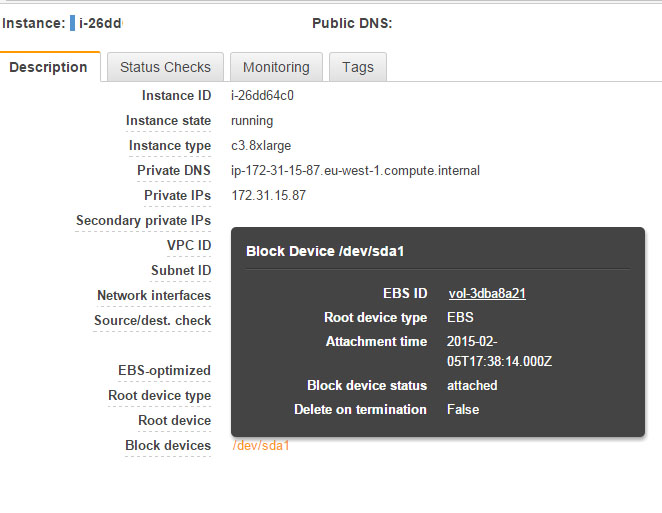
Replace the profile, region and instance ID. In the EC2 console, the same setting appears under the instance's Storage → Block devices → Delete on termination column.
aws --profile YOUR_PROFILE --region eu-west-1 ec2 describe-instances --instance-ids i-0123456789abcdef0 --query 'Reservations[].Instances[].BlockDeviceMappings[].{Device:DeviceName,Volume:Ebs.VolumeId,Delete:Ebs.DeleteOnTermination}' --output table2. Save a mapping file
Save the following as mapping.json, replacing /dev/sda1 with the DeviceName returned above for the volume you intend to preserve.
[
  {"DeviceName": "/dev/sda1", "Ebs": {"DeleteOnTermination": false}}
]
3. Apply and verify
AWS documents this change for a running instance. The file:// prefix tells the CLI to read the JSON file.
aws --profile YOUR_PROFILE --region eu-west-1 ec2 modify-instance-attribute --instance-id i-0123456789abcdef0 --block-device-mappings file://mapping.jsonRepeat step 1 and check that the intended volume now shows False. Keep your normal backups: retaining an attached volume is not a backup strategy.
References: AWS volume persistence guidance and the modify-instance-attribute reference. The older account below is retained for context; use the procedure above for the current commands.
Original 2015 post
When launching an EC2 instance on Amazon Web Services, the EBS volume is set to ‘Delete on Termination’ by default. Most of the time this is fine as you’d often rather make a snapshot of your drive to enable you to boot up multiple copies of the same instance, or if you’re a developer that’s creating and terminating instances regularly it would be a nightmare to have all of these orphaned EBS volumes cluttering up your account.
But what do you do when you have a running instance where the EBS was set to Delete and you’ve changed your mind and want to keep it? The AWS documentation is surprisingly vague about this, mostly talking about setting the flag on launch. So how do you do it for a running instance? And for that matter, how can you tell if you set an existing instance to Delete on Termination? It might have been a while and it’s hard to remember if you ticked that checkbox.
How to check the EBS ‘Delete on Termination’ flag
It’s a little buried. Go to your EC2 management console and click on ‘Instances’. Click on the instance you’re curious about, and then under the ‘Description’ tab, scroll down to ‘Block devices’, and click on the appropriate EBS volume. This will pop up an attribute box which will state the Delete on Termination flag. This seems to be the only place in the whole AWS console to check this information!
How to modify the EBS ‘Delete on Termination’ flag
The only way to do this is by using the AWS CLI, at the current time there’s no way to do this using the web console.
You can do this in one of two ways, either by specifying a JSON attribute file with the modifications you want to apply to the instance, or by doing it in-line with escape characters.
aws ec2 modify-instance-attribute --instance-id i-a3ef245 --block-device-mappings /path/to/file.json
with a .json file in the a format such as:
[
    {
    "DeviceName": "/dev/sda1",
    "Ebs": {
      "DeleteOnTermination": false
      }
    }
]
Or without using a .json file inline like this:
aws ec2 modify-instance-attribute --instance-id i-a3ef245 --block-device-mappings "[{\"DeviceName\": \"/dev/sda\",\"Ebs\":{\"DeleteOnTermination\":false}}]"Note: You will need to configure the AWS cli (command from terminal: ‘aws configure’) either with user credentials with a policy that grants permissions to the appropriate EC2 instance, or run the CLI on an instance which has EC2 Role permissions.
Now hopefully you’ll be able to save that EBS volume after changing your mind about the termination flag!